
WordPress Maintenance: The Basics That Save You Later
A simple, checklist-style guide to WordPress maintenance for non-technical readers, covering updates, backups, security basics, and an easy monthly rhythm.
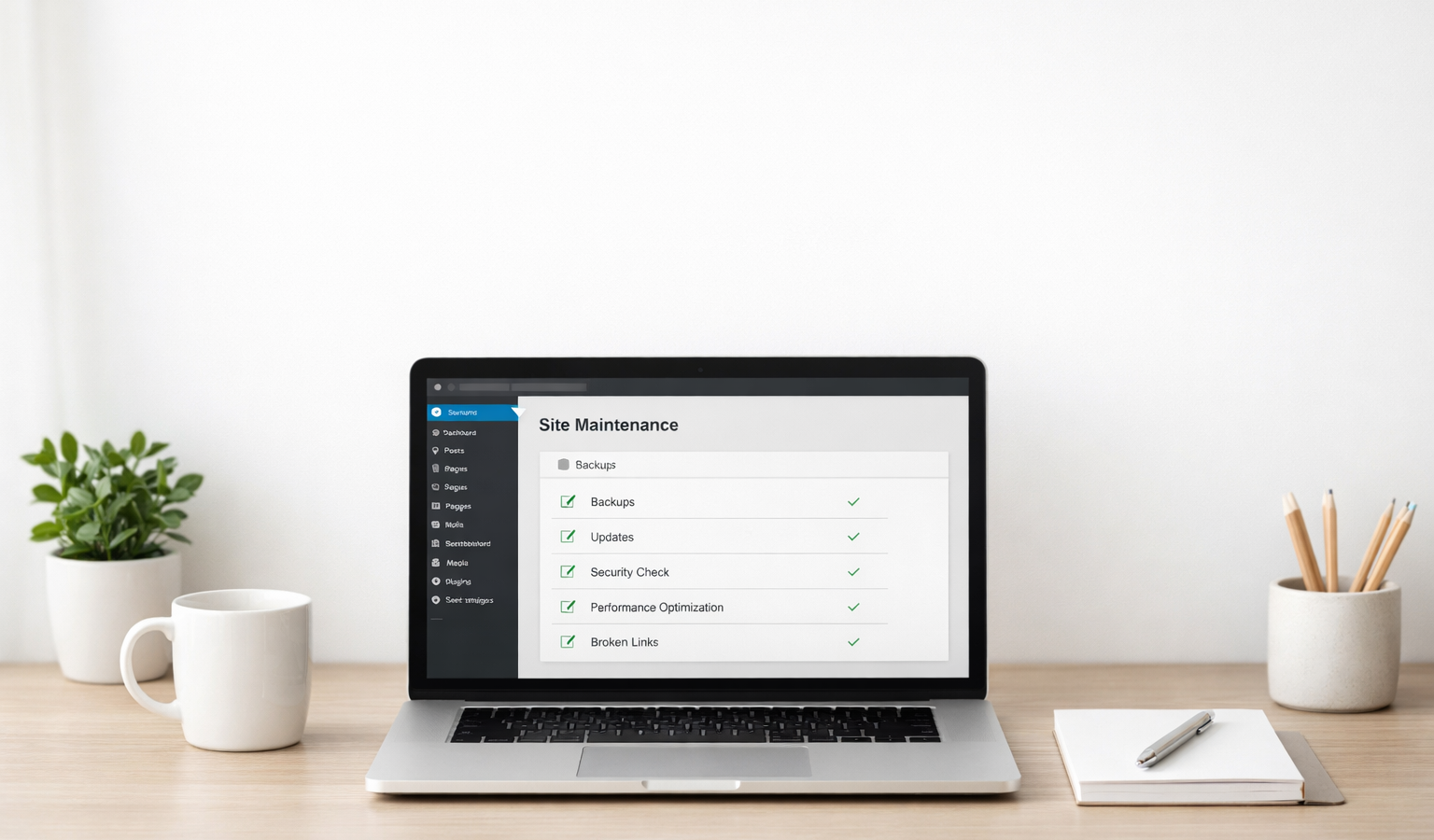
WordPress maintenance is one of those jobs that feels optional right up until something breaks. Then it suddenly becomes very important. For a small business, creator site, or service-based brand, a missed update or skipped backup can turn into downtime, broken forms, security issues, or lost leads. The good news is that you do not need to be a developer to keep a WordPress site healthy. You need a simple rhythm, a few habits, and a reliable, transparent hosting setup that makes the whole process easier.
Think of maintenance less like “doing technical chores” and more like protecting an asset. Your site is part of your marketing, your credibility, and often your sales process. A little routine care now saves a lot of stress later.
Why WordPress maintenance matters
WordPress is powerful because it is flexible. That flexibility also means your site can change over time as plugins update, themes evolve, hosting environments shift, and content gets added or removed. If nothing is checked regularly, small issues pile up quietly.
In practical terms, maintenance helps you avoid:
- Security problems caused by outdated software
- Broken pages, forms, or checkout flows
- Slow load times that hurt conversions and SEO
- Data loss from missing or incomplete backups
- Unexpected conflicts after plugin or theme updates
For most small business owners, the goal is not perfection. The goal is a website that stays dependable, easy to trust, and simple to recover if something goes wrong.
WordPress maintenance checklist
1) Keep WordPress core, themes, and plugins updated
Updates are the first line of defense. WordPress core updates often include security fixes, while plugin and theme updates can patch bugs, improve compatibility, and add new features. Skipping updates for months is one of the fastest ways to create avoidable problems.
- Update WordPress core first, then themes, then plugins.
- Read the changelog when possible, especially for major plugins that affect forms, SEO, ecommerce, or page building.
- Update one thing at a time if you are nervous about conflicts.
- Use a staging site if your hosting plan offers one. That lets you test changes before they go live.
If you prefer a conservative approach, do not click “update all” blindly and hope for the best. A few extra minutes of caution can prevent a long support ticket later.
2) Back up before you change anything important
Backups are the maintenance task everyone appreciates after an emergency. A good backup gives you a clean way to restore the site if an update goes wrong, if a plugin conflict appears, or if someone accidentally deletes key content.
- Back up files and the database, not just one or the other.
- Keep at least one off-site backup in cloud storage or a backup service outside your hosting account.
- Test your restore process at least once so you know it works before you need it.
- Confirm your hosting provider’s backup policy. Reliable, transparent website hosting should make it obvious how backups are created, stored, and restored.
A backup that cannot be restored is not much of a backup. If your host is vague about retention windows, restore steps, or extra fees for recovery, treat that as a warning sign.
3) Cover the basic security essentials
WordPress security does not have to be complicated. Most attacks are opportunistic, which means they look for weak passwords, stale software, exposed admin accounts, and poorly configured forms. A few basic habits will dramatically improve your odds.
- Use strong, unique passwords for every admin account.
- Turn on two-factor authentication if your security plugin or login system supports it.
- Limit admin users to the people who truly need full access.
- Remove old accounts for former contractors, team members, or temporary developers.
- Install only trusted plugins and themes from reputable sources.
Security also includes the little things. Make sure your contact forms send to the right email address, your login page is protected where appropriate, and your SSL certificate is active so visitors see the secure padlock in their browser.
4) Check the parts of the site that actually make money
It is easy to focus on the dashboard and forget the user experience. But your visitors do not care whether WordPress says everything is “up to date.” They care whether your site loads, your buttons work, and your forms submit correctly.
- Test your homepage and top landing pages after updates.
- Submit a contact form and confirm the email arrives.
- Check checkout pages, booking flows, or donation forms if your site uses them.
- Click a few links to catch broken navigation or outdated URLs.
- Review key mobile pages on a phone, not just a desktop screen.
This is where a practical, engineering-style mindset helps. A site can look fine on the surface while one critical path is broken underneath. Always test the pages that matter most to your business.
5) Watch speed, uptime, and hosting quality
Performance issues often show up gradually. A slow homepage, laggy dashboard, or delayed form submission may feel like a minor annoyance at first, but it usually points to a larger problem: too many plugins, bloated images, a weak database, or underpowered website hosting.
- Watch for slow page loads on both desktop and mobile.
- Review uptime if your host provides a monitoring dashboard.
- Ask whether caching, CDN support, and malware scanning are included or easy to add.
- Choose a hosting provider that is transparent about limits, backups, outages, and restore procedures.
Good hosting should reduce maintenance, not create more work. If your provider is unclear about how they handle backups or support, that lack of transparency becomes part of the maintenance burden.
6) Clean up the clutter
Over time, websites collect digital debris. Old drafts, unused plugins, unused themes, stale media files, and abandoned test pages can add confusion and even risk. A cleaner site is easier to maintain, easier to secure, and easier to understand when something goes wrong.
- Delete plugins and themes you are not using, not just deactivate them.
- Remove test pages and demo content left behind from setup or development work.
- Review media uploads for obvious duplicates or files no longer needed.
- Check user roles and remove permissions that are no longer necessary.
This is a simple but important habit. Less clutter means fewer things to audit, fewer ways for attackers to probe your site, and fewer places for confusion to hide.
A straightforward maintenance rhythm for non-technical readers
The easiest way to stay consistent is to break maintenance into weekly, monthly, and quarterly tasks. You do not need a complex system. You need a schedule you will actually follow.
Weekly
- Check for WordPress, theme, and plugin updates.
- Run a backup before applying changes.
- Test your most important forms and links.
- Look at the site on a phone and make sure the homepage still feels right.
Monthly
- Review site speed and note any obvious slowdown.
- Delete unused plugins, themes, and temporary files.
- Confirm backups are being stored correctly.
- Audit user accounts and remove anything unnecessary.
- Check that your SSL certificate and security tools are still active.
Quarterly
- Review your top pages for accuracy and outdated content.
- Test a full restore from backup if your workflow allows it.
- Look at hosting performance, storage usage, and support quality.
- Evaluate whether your plugins still serve a real business need.
If you want to keep it very simple, put one recurring task on your calendar: “WordPress maintenance.” Then use the checklist above as your script. Consistency matters more than complexity.
Common maintenance mistakes to avoid
Most WordPress problems come from a few repeat behaviors. Avoid these and you will already be ahead of the curve.
- Waiting too long to update because “nothing has broken yet.”
- Installing too many plugins when one or two could solve the problem cleanly.
- Skipping backups because the site seems stable.
- Ignoring notices from your host about storage, PHP versions, or security changes.
- Changing multiple things at once and then not knowing what caused a problem.
A calm maintenance process is easier when you make one change, verify it, and move on. That approach is slower than chaos but much faster than troubleshooting a broken site after the fact.
Key takeaways
- WordPress maintenance protects revenue, not just technology.
- Updates and backups are non-negotiable for a stable site.
- Security basics matter more than advanced tools you never use.
- Test the pages that matter most to your small business or creative work.
- A simple weekly, monthly, and quarterly rhythm is enough for most sites.
When maintenance is done well, it disappears into the background. That is the goal. A dependable site should not demand your attention every day; it should quietly support your work while you focus on content, clients, sales, and growth.
Related Resources
- Updating WordPress — Official guidance on keeping core software current with less guesswork.
- WordPress Backups — A practical overview of what to back up and why it matters.
- WordPress Security — WordPress.org’s official security information for safer site management.
- Upgrade and Maintenance Documentation — More technical documentation for readers who want to understand the process in greater depth.